YouTube
1 Building a cost overview
2 Download with joins
3 Download with Method and Expressions
Menu options

In the Exsion365 ribbon the following items are available:
- Connection
- Search Company
- Database structure
- Function definition
- Formulas to values
- Show details
- Dynamic download
- Refresh All
- Refresh
- Help
- Info
Connection

When you click “Connection”, you sign in with your Microsoft account and the following screen opens:
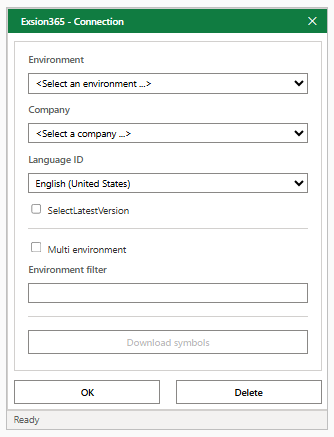
Here you can adjust the following settings:
| Field | Description |
|---|---|
| Environment | The environment you want to access. |
| Company | The company you want to access. |
| Language ID | The language of the metadata from Business Central. |
| SelectLatestVersion | Forces the use of the latest version of the database. “Microsoft documentation” |
| Multi environment | Checkbox to indicate whether you want to work with multiple environments. |
| Environment filter | Filter to retrieve data from 1 selected environment. |
| Download symbols | Button to download the symbols (table/field definitions) for the selected environment. The button is only enabled when Business Central reports that there are symbols to download. |
| OK | Saves the connection. |
| Delete | Deletes the saved connection and signs you out. The next time you click “Connection”, you sign in again. |
Search Company

When you click on “Search company”, a screen opens that makes all companies from the database visible.
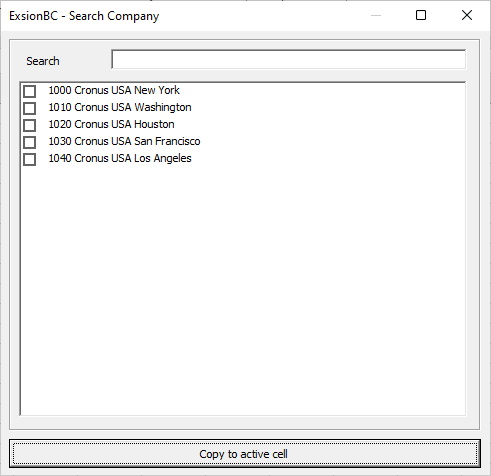
Click a company to check or uncheck it, then press “Copy to active cell”.
| Field | Description |
|---|---|
| Search | Shows only the companies that contain the entered text in one of the columns. |
| Select | Checks or unchecks all companies shown. |
| Name | The name of the company. |
| Display name, Environment, Type | The display name of the company and the environment (and its type) the company belongs to. These columns are only shown with “Multi environment”. |
| Copy to active cell | Places the checked companies in the active cell, separated by “|”, and closes the screen. |
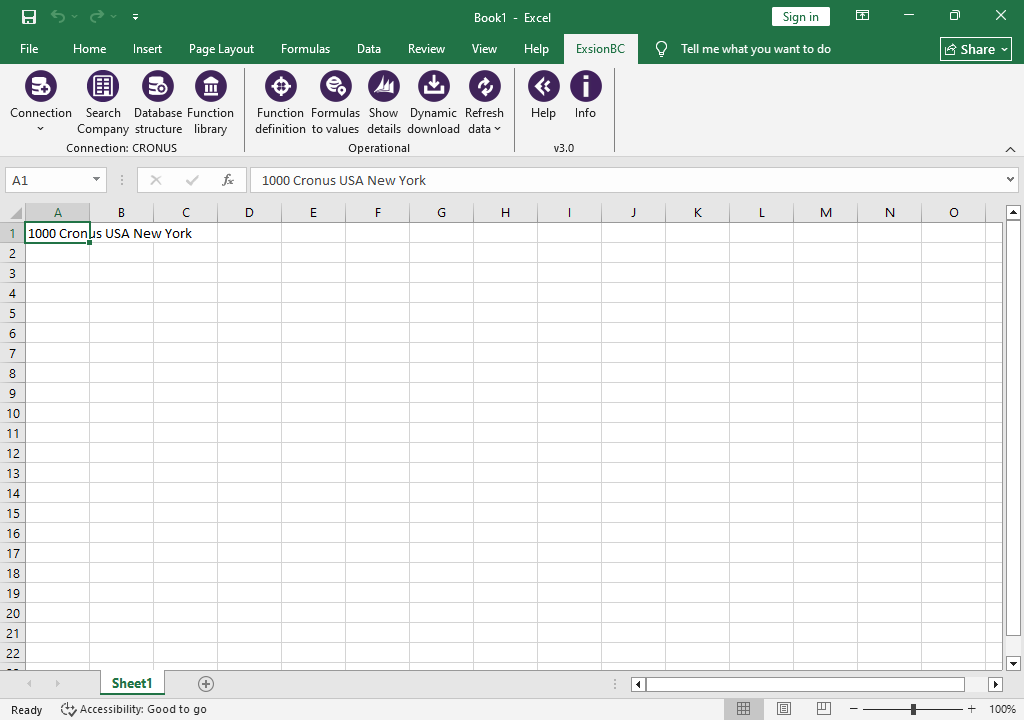
You will then see the chosen companies in the cell you selected. When you select multiple companies, these companies will all be placed in the same cell, separated by “|”. Such a cell can be used directly as a company filter. If you don’t want this, you must select a new cell and press “Search company” to copy the next company.
Please note! You do need to select the correct cell before pressing “Search company”. If you don’t do this, the company will be placed on the then selected cell.
Database structure

This option will create a roadmap from your Microsoft Dynamics 365 BC to provide information about tables, fields, indexes, datatypes and possible joins.
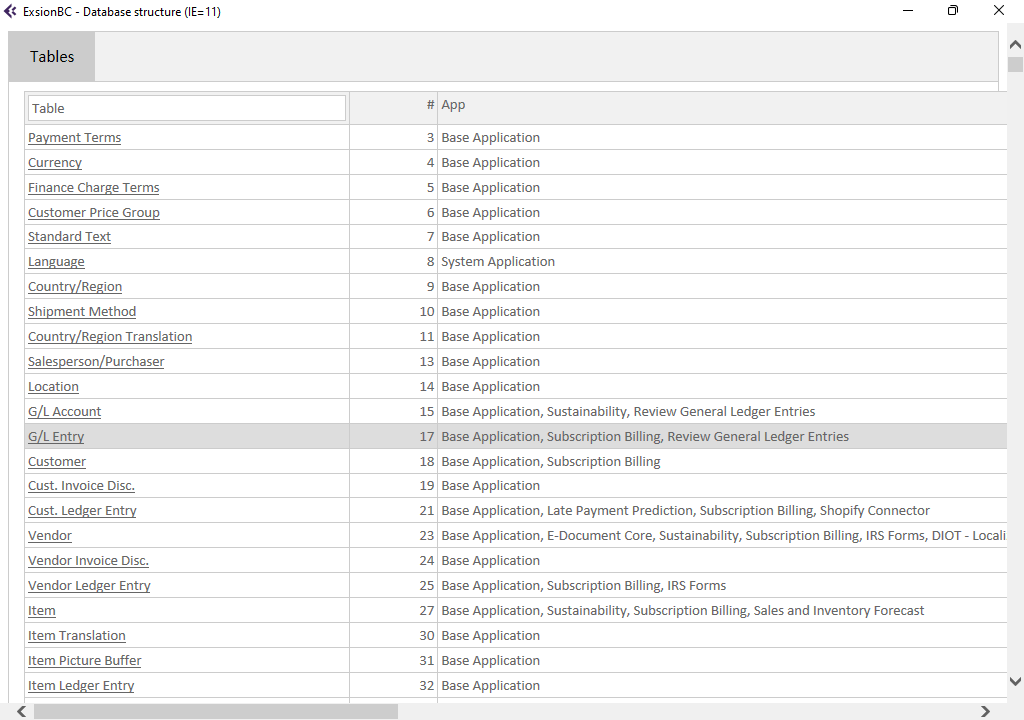
Click on a tablename to see the details about that table.
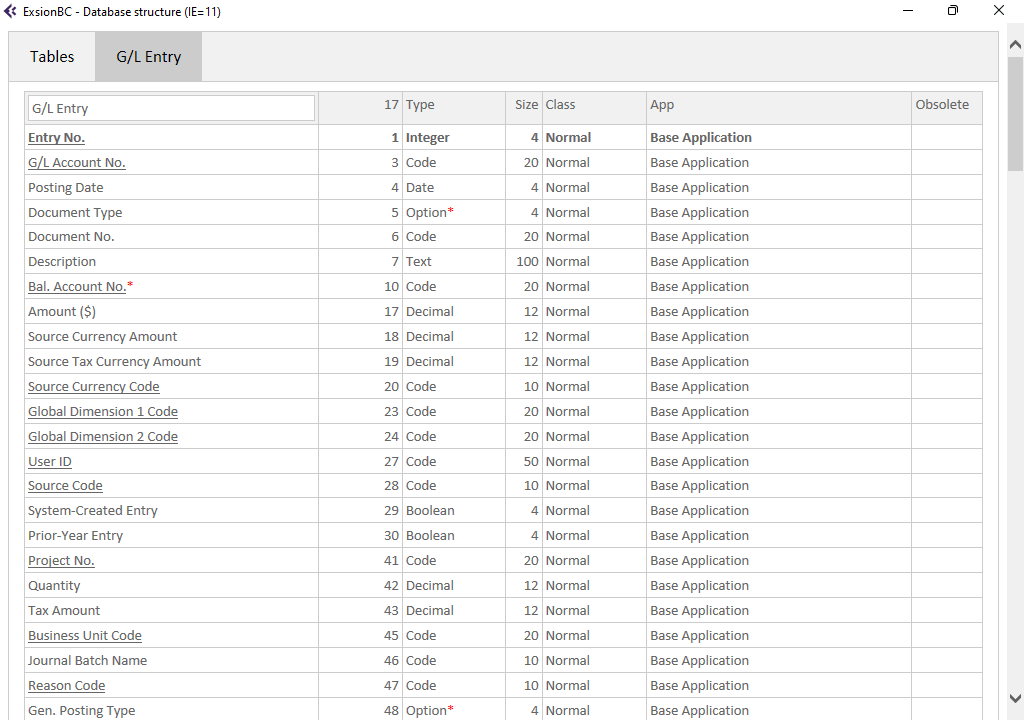
| Column | Description |
|---|---|
| Column 1 | Row 1 holds the tablename. The other rows are the fieldnames in that table. |
| Column 2 | The field numbers. These can be used to find a table when creating a dynamic download or function. |
| Type | The field’s datatype. |
| Size | Maximum field length. |
| Class | This defines if a field must contain a value or can be left blank. |
| App | Extension(s) in which the table and fields are defined. |
| Obsolete | Whether the table or field is obsolete: “Pending” will be removed in a future version of Business Central, “Removed” has been removed. If it is followed by a “*”, the tooltip shows the reason. |
| Index | The indexes as defined for this table. |
| SumFields | The SUM fields as defined for this table. |
Function definition

It is possible to include a function in an Excel file. This function can then be used in the “Dynamic Download” to retrieve data from multiple tables.
Expression functions take as argument (definition) a range containing the table, index fields, and the field name whose value is to be retrieved.
To create a definition for the range in which the table and index fields are included, you must choose the option “Function definition”. In this screen, the table, the field and the index must be specified in sequence.
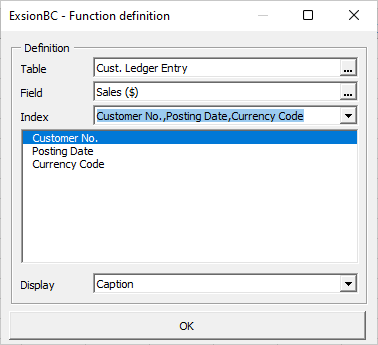
After you click “OK” a name can be entered for this function.
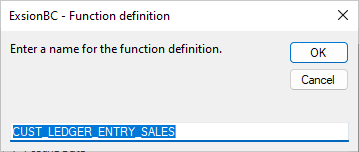
The function will now be stored in the worksheet in a readable format with the active cell as the top-left one.
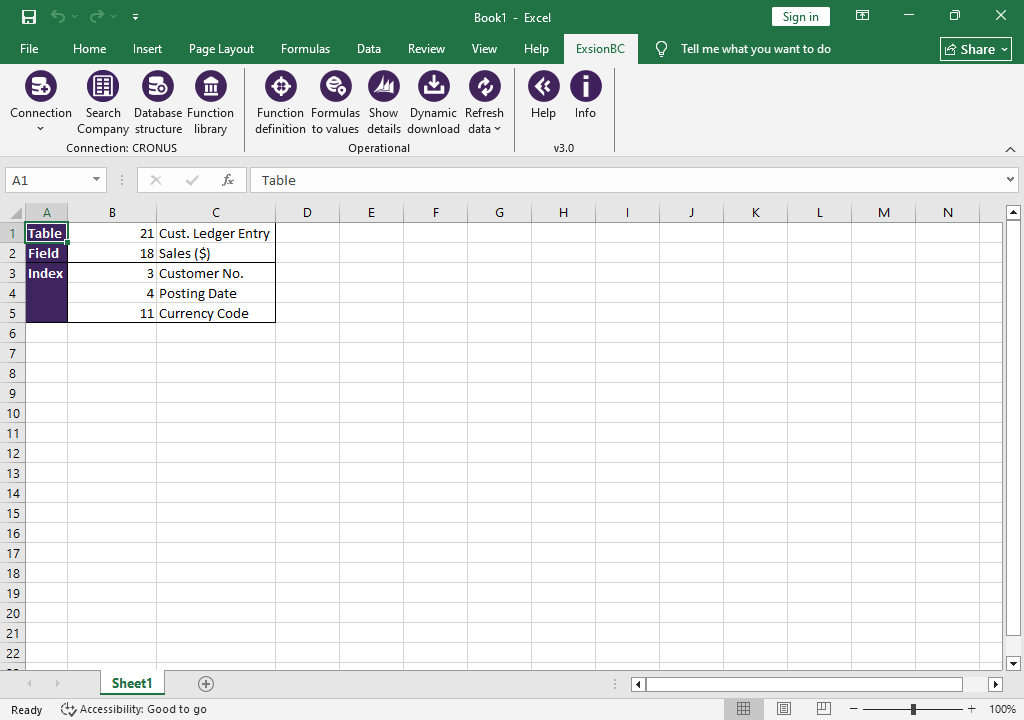
See the chapter “Expression functions”, for a list of functions that use this function definition.
See “Using a function definition” for an example.
Formulas to values

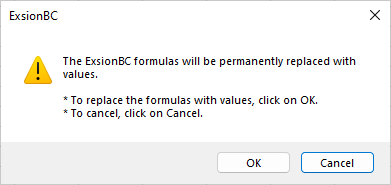
This option is used to replace all Exsion365 functions in your document by their current values so the document can be sent to Excel users that have no access to Exsion365.
NOTE: Make sure to have a backup from the document before doing this because it cannot be undone.
Show details

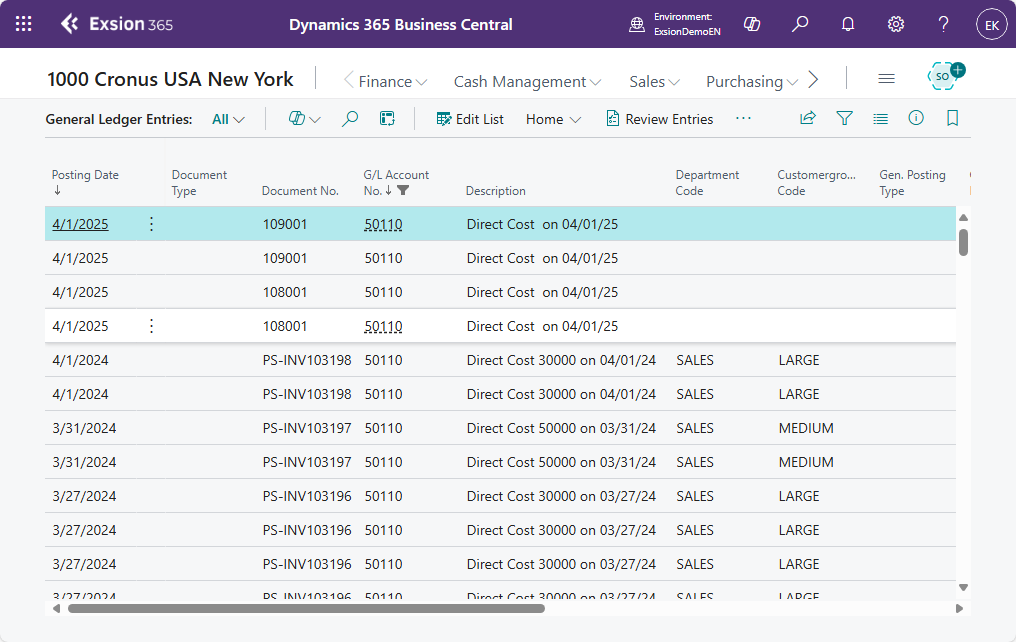
This functionality gives you insight into the details behind an Exsion365 formula of the current cell. Show details always opens Microsoft Dynamics 365 BC directly with the details.
Dynamic download

A Dynamic Download is used to get data from Microsoft Dynamics 365 BC in the Excel sheet. As opposed to functions, this will get more data than just one item. If the cursor sits in the output range of an existing download definition the cursor will be placed in the download definition instead of directly displaying the interface as described next.
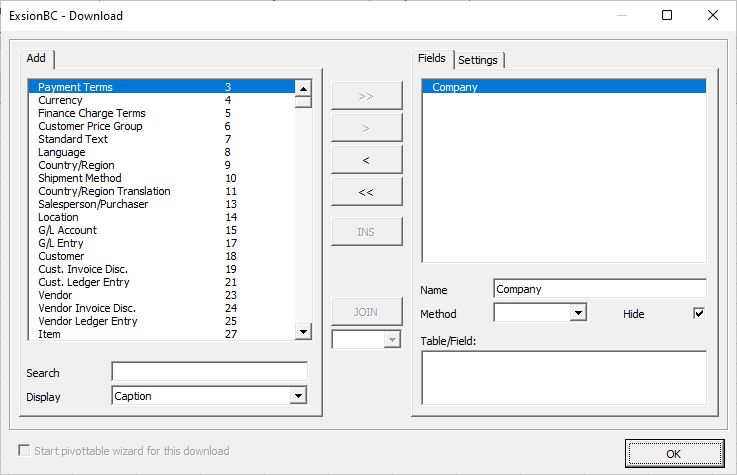
| Field | Description |
|---|---|
| Add | Shows a list of accessible tables from Microsoft Dynamics 365 BC. |
| Search | Enter table name or number to filter the list of tables. |
| Display | Choice to display table/field Name or Caption. |
| Buttons to select | The button “>>” adds all fields. The button “>” only adds the selected field. The buttons “<” and “<<” deselect either a single field or all fields. |
| INS | Insert a non-table column that can be used for a user defined calculation. |
| JOIN | If more than one table is used, they must be joined. |
| [___] | Join type (INNER, OUTER, INNER TOP 1, OUTER TOP 1, NOT EXISTS or METHOD) |
| Fields | Shows a list of fields used by the download. |
| Name | By default the field's actual name is used. This can be changed here. This name is shown in the (pivot)table. |
| Method | The calculation method for that field (SUM, MIN, MAX, AVG, CNT, Year, Quarter, Month, Week, Day, Period, INT, ImageS, ImageL, ImageXL or ImageXXL). |
| Hide | If checked, this will hide the field in the download definition. |
| Table/Field | Tablename/fieldname for the above selected field. |
| Start pivottable wizard for this download | After a download has been used for the first time, it can be modified to use it for creation of a PivotTable. Click on a cell in the download definition and then the Dynamic download menu option to modify the existing download. Now select the box: Start pivottable wizard for this download. |
| OK | Click “OK” to save the download definition in the current worksheet. |
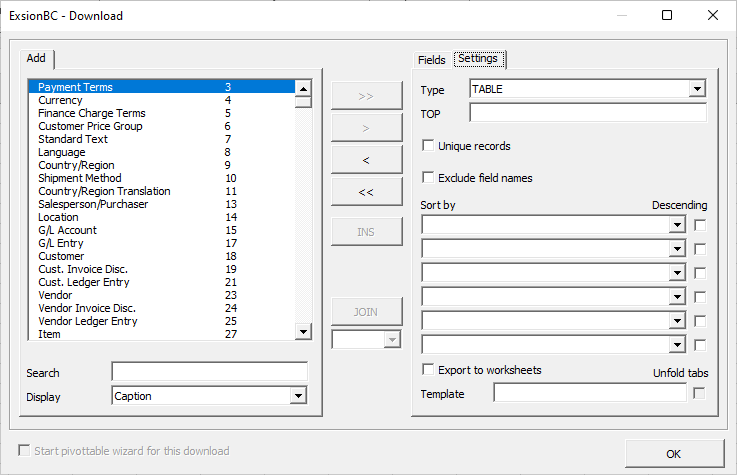
Options from the tab “Settings”.
| Field | Description |
|---|---|
| TOP | Enter the number of records you want to retrieve, e.g. enter 5 to retrieve only the first 5 records, 10 for the first 10 records, etc. Leave empty to retrieve all records. |
| Unique records | This will force unique output over all used fields. |
| Exclude field names | Don't place field names on top of the record-set. |
| Sort by | Sort on a maximum of 6 fields. |
| Descending | Sort output descending. |
To add a table double-click on a tablename in the list of tables. Exsion365 will then create a new tab for that table where you can select the fields to be shown on that tab.
Joining tables
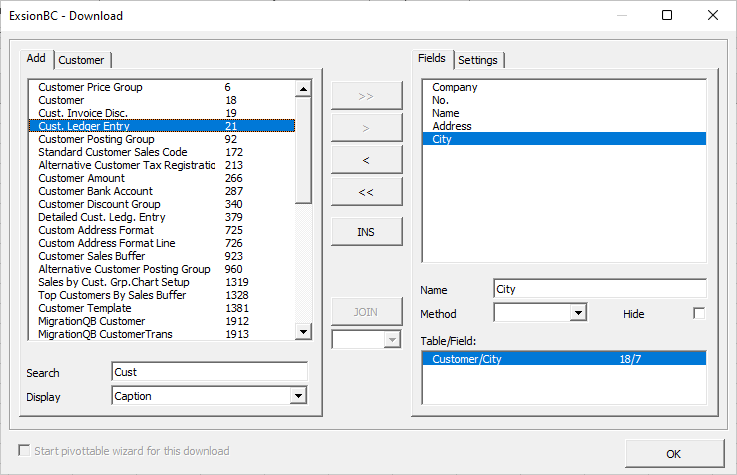
After adding a second table Exsion365 will show a JOIN proposal:
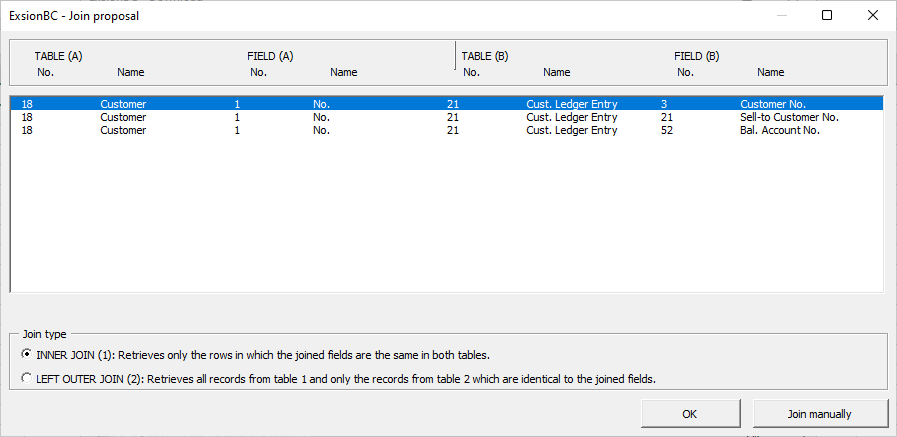
| Field | Description |
|---|---|
| Join fields | The list of fields that can be used to join the tables. |
| Join type | The different Join types. |
| OK | Join the tables. |
| Join manually | Closes the proposal without joining. You then define the relation yourself with the “JOIN” button. |
The download definition will be changed accordingly.
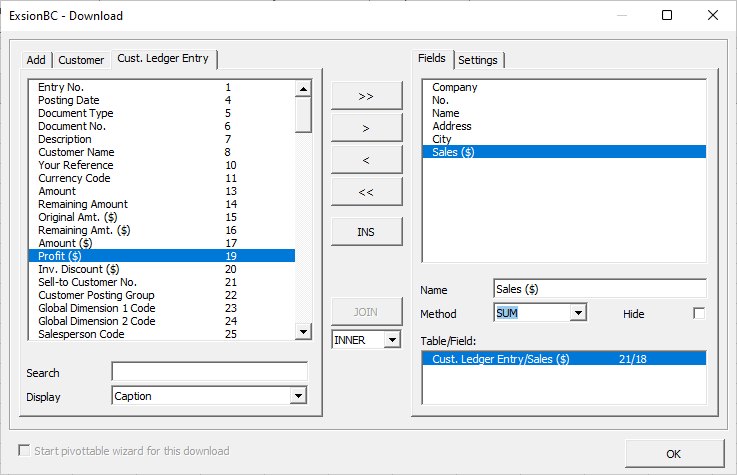
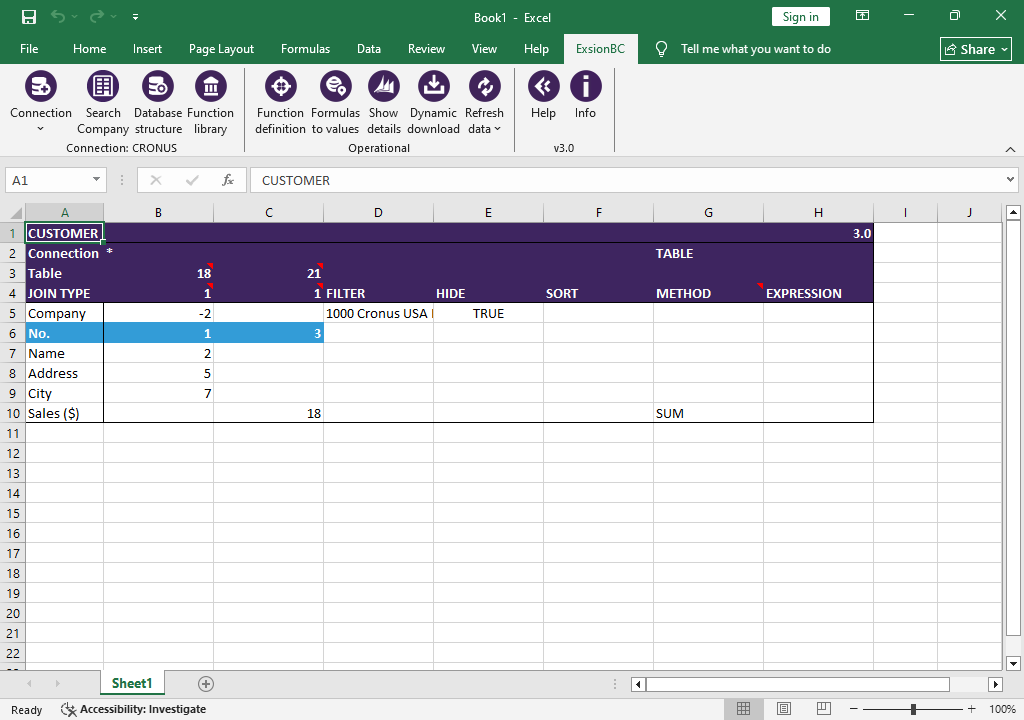
| Field | Description |
|---|---|
| Connection | The connection on which the download is based. |
| Table | The table number(s) to download from. If this reads “Table excl. field names”, “Exclude field names” is switched on and no field names are shown above the output. |
| UNIQUE / TOP | To the right of “Connection” it reads “UNIQUE” when “Unique records” is switched on, or “TOP” with the number of records when that is filled in. |
| JOIN TYPE | If more than one table is used, the join type will be shown here. |
| FILTER | A filter for the field (See: Filter usage). |
| HIDE | Fields can be shown or hidden in the output location. |
| SORT | A number from 1 to 6. To sort descending, a negative number must be specified. |
| METHOD | The calculation method for that field (SUM, MIN, MAX, AVG, CNT, Year, Quarter, Month, Week, Day, Period, INT, ImageS, ImageL, ImageXL or ImageXXL). |
| EXPRESSION | Here an Exsion365 function can be used to simplify the download. |
| Company | The first line always contains a dummy field “Company” with field number “-2”. This field can be used if multiple companies are used to report from a specific company. To do this, change the hide to “FALSE”, the output will then show the “Company” from which the data is retrieved. |
| Fields | All fields that are selected are displayed below each other. |
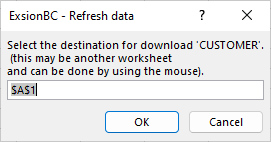
Click the “Refresh All” button in the ribbon menu to activate the download. If this is the first time this download is used, it will ask for an output location.
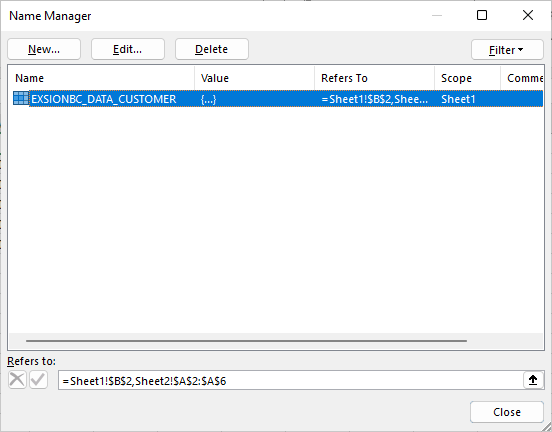
Each download definition has a name which starts with “EXSION365_DATA_” followed by the tablename. When multiple downloads are used, they are refreshed one after another. The downloads are refreshed based on the alphabetical order of the logical name.

Join types
There are 6 join types to choose from. The join proposal offers Inner and Outer. All 6 can be chosen in the list next to the “JOIN” button in the download screen, or entered in the “JOIN TYPE” row of the download definition.
| Type of join | Description |
|---|---|
| 1=Inner | Include only records where the joined fields from both tables are identical. |
| 2=Outer | Include all records from the first table and only those records from the second table where the joined fields are identical. |
| 3=Inner top 1 | Displays the first record where the joined fields from both tables are identical. Regarding the first record, it can be influenced by sorting in descending or ascending order. |
| 4=Outer top 1 | Include all records from the first table and only the first record from the second table where the joined fields are identical. Regarding the first record, it can be influenced by sorting in descending or ascending order. |
| 5=Not Exists | Include only records from the second table where the joined fields are not identical. |
| 6=Method | Table join to show a summed value from the linked table. |
PivotTable
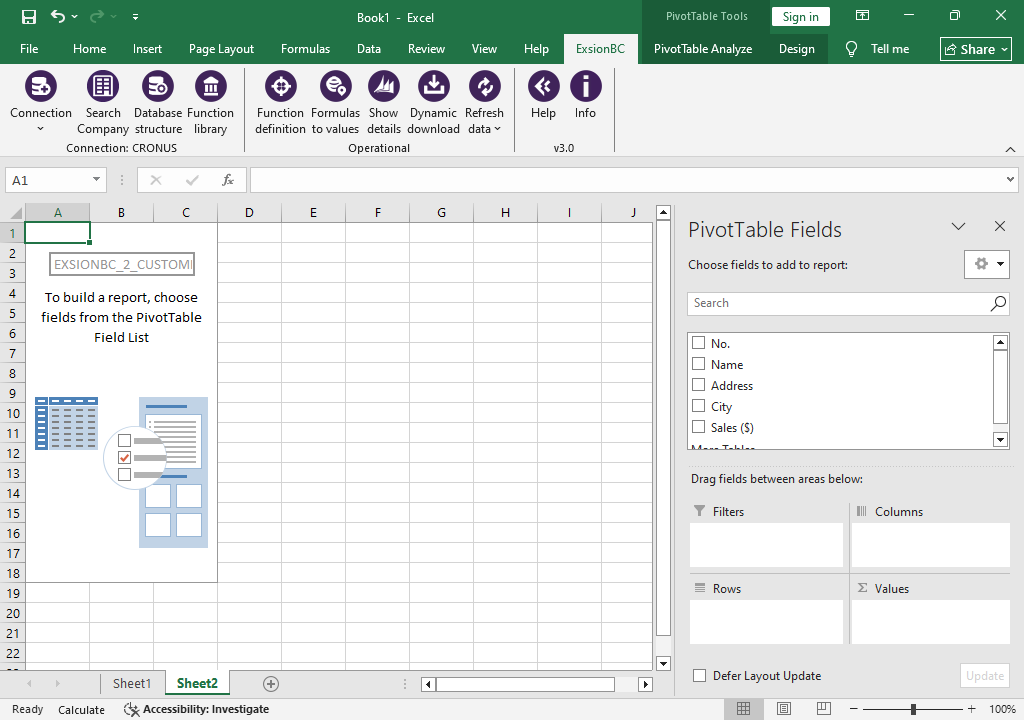
After a download has been used for the first time, it can be modified to use it for creating a PivotTable.
Click on a cell in the download definition and then the Dynamic download menu option to modify the existing download.
Now select the box “Start pivottable wizard for this download”.
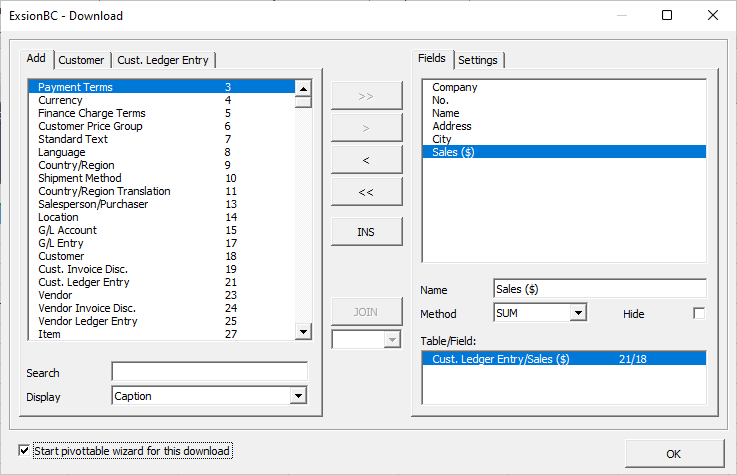
When you click “OK”, Exsion365 will ask you for the location of the pivottable.
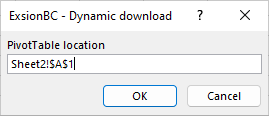
The PivotTable name will be “EXSION365_<tablename>”. Because of this, the pivottable will be refreshed when you click the “Refresh All” button in the Exsion365 menu.
Refresh All

The “Refresh All” button will activate all dynamic downloads and force a recalculation of all formulas so that all information will reflect the database information at that time.
While refreshing, Exsion365 shows the progress in the task pane “Exsion365 - Refresh”:
| Column | Description |
|---|---|
| Name | The name of the download or worksheet. |
| Action | What is being executed. |
| Environment | The environment the data comes from. |
| Start | The time the action started. |
| Size | The amount of data retrieved. |
| Duration | How long the action took. |
If the worksheet is protected, Exsion365 asks for the sheet password in the “Unprotect Sheet” screen. The password is stored encrypted in the workbook, so it is not asked again on the next refresh.
Refresh

Should you want to refresh only the download definition that the cursor sits in, you can use the “Refresh” button instead. This can be useful for testing purposes. The date and time of the last refresh is always displayed in the header of the download definition.
Help

Contains all the information needed to use Exsion365.
Info

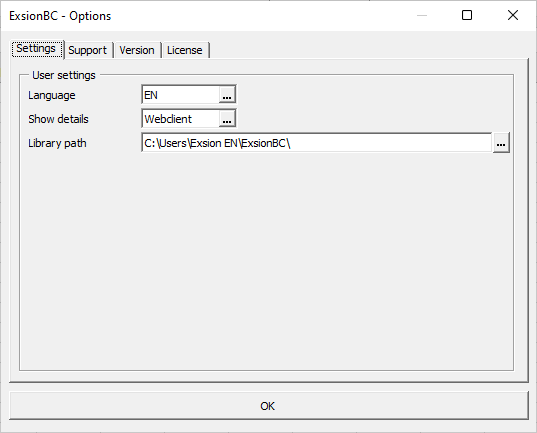
| Tab | Description | ||||||||
|---|---|---|---|---|---|---|---|---|---|
| Support | Our helpdesk can provide remote support using TeamViewer. | ||||||||
| Version |
|
||||||||
| License | Shows the company to which a right of use has been granted, the product key, the number of licenses and the number of activated licenses, and which users have activated a license (with the version they use). The “EXPORT” button copies this list to a new worksheet “Exsion365”; an existing worksheet with that name is replaced. |
Functions
Standard functions
| Function | Description |
|---|---|
| EXSION365_ANVBAL | Returns the balance of an analysis view. |
| EXSION365_COMPANY | Returns the display name of a company. |
| EXSION365_DATE | Returns a date filter. |
| EXSION365_DI1NAME | Returns the global dimension 1 name. |
| EXSION365_DI2NAME | Returns the global dimension 2 name. |
| EXSION365_DIMNAME | Returns the dimension name. |
| EXSION365_CUSNAME | Returns the customer name. |
| EXSION365_CUSBAL | Returns the outstanding balance of a customer. |
| EXSION365_CUSCITY | Returns the customer location. |
| EXSION365_VENNAME | Returns the vendor name. |
| EXSION365_VENBAL | Returns the outstanding balance of a vendor. |
| EXSION365_VENCITY | Returns the vendor location. |
| EXSION365_ACCNAME | Returns the name of the G/L account. |
| EXSION365_ACCBAL | Returns the balance or budget of a G/L account. |
| EXSION365_ACCTOT | Returns the totaling of the G/L account. |
| EXSION365_CONCATENATE | Returns the combined text of a range. |
| EXSION365_URL | Returns the Web client URL of a company. |
| EXSION365_WEEKNUM | Returns the week number of a date. |
These functions can be found in Excel’s function wizard under the category “Exsion365 for Business Central”.
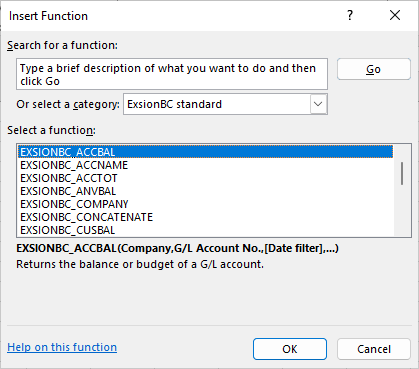
EXSION365_ANVBAL
Returns the balance of an analysis view.
| Argument | Description |
|---|---|
| Company | Company. |
| Analysis view code | Analysis view code. |
| [G/L account] | G/L account (filter). |
| [Date filter] | Date (filter). |
| [Budget code] | Budget. |
| [Dimension 1] | Code dimension 1 filter. |
| [Dimension 2] | Code dimension 2 filter. |
| [Dimension 3] | Code dimension 3 filter. |
| [Dimension 4] | Code dimension 4 filter. |
EXSION365_COMPANY
Returns the display name of a company.
| Argument | Description |
|---|---|
| Company | Company. |
EXSION365_DATE
Returns a date filter.
| Argument | Description |
|---|---|
| Company | Company. |
| Type | Choose 1=Day, 2=Week, 3=Month, 4=Quarter, 5=Year or 6=Accounting Period. |
| [Cumulative] | 0=No, 1=Yes or 2=YTD (Year to date). |
| [Index] | Index of type (e.g. Month 1 to 12). |
| [Year] | Optional year (the current year is default). |
EXSION365_DI1NAME
Returns the global dimension 1 name.
| Argument | Description |
|---|---|
| Company | Company. |
| Dimension code | Dimension 1. |
EXSION365_DI2NAME
Returns the global dimension 2 name.
| Argument | Description |
|---|---|
| Company | Company. |
| Dimension code | Dimension 2. |
EXSION365_DIMNAME
Returns the dimension name.
| Argument | Description |
|---|---|
| Company | Company. |
| Dimension group | Dimension group. |
| Dimension code | Dimension value. |
EXSION365_CUSNAME
Returns the customer name.
| Argument | Description |
|---|---|
| Company | Company. |
| Customer No. | Customer No. |
EXSION365_CUSBAL
Returns the outstanding balance of a customer.
| Argument | Description |
|---|---|
| Company | Company. |
| Customer No. | Customer No. |
| [Date filter] | Date (filter). |
| [Dimension 1] | Global dimension code 1 filter. |
| [Dimension 2] | Global dimension code 2 filter. |
EXSION365_CUSCITY
Returns the customer location.
| Argument | Description |
|---|---|
| Company | Company. |
| Customer No. | Customer No. |
EXSION365_VENNAME
Returns the vendor name.
| Argument | Description |
|---|---|
| Company | Company. |
| Vendor No. | Vendor No. |
EXSION365_VENBAL
Returns the outstanding balance of a vendor.
| Argument | Description |
|---|---|
| Company | Company. |
| Vendor No. | Vendor No. |
| [Date filter] | Date (filter). |
| [Dimension 1] | Global dimension code 1 filter. |
| [Dimension 2] | Global dimension code 2 filter. |
EXSION365_VENCITY
Returns the vendor location.
| Argument | Description |
|---|---|
| Company | Company. |
| Vendor No. | Vendor No. |
EXSION365_ACCNAME
Returns the name of the G/L account.
| Argument | Description |
|---|---|
| Company | Company. |
| G/L account | G/L account. |
EXSION365_ACCBAL
Returns the balance or budget of a G/L account.
| Argument | Description |
|---|---|
| Company | Company. |
| G/L account | G/L account (filter). |
| [Date filter] | Date (filter). |
| [Budget code] | Budget. |
| [Dimension 1] | Global dimension code 1 filter. |
| [Dimension 2] | Global dimension code 2 filter. |
EXSION365_ACCTOT
Returns the totaling of the G/L account.
| Argument | Description |
|---|---|
| Company | Company. |
| G/L account | G/L account. |
EXSION365_CONCATENATE
Returns the combined text of a range.
| Argument | Description |
|---|---|
| Range | Range of cells. |
| [Delimiter] | A delimiter or text. |
| [Unique] | If TRUE, then only the unique values will be combined. |
| [Empty cells] | If TRUE, empty cells will be included. |
EXSION365_URL
Returns the Web client URL of a company.
| Argument | Description |
|---|---|
| Company | Company. |
| [Page] | Page |
| [Table] | Table |
| [Field 1] | Field 1 |
| [Filter 1] | Filter 1 |
| [Field 2] | Field 2 |
| [Filter 2] | Filter 2 |
| [Field 3] | Field 3 |
| [Filter 3] | Filter 3 |
| [Field 4] | Field 4 |
| [Filter 4] | Filter 4 |
| [Field 5] | Field 5 |
| [Filter 5] | Filter 5 |
| [Field 6] | Field 6 |
| [Filter 6] | Filter 6 |
| [Field 7] | Field 7 |
| [Filter 7] | Filter 7 |
| [Field 8] | Field 8 |
| [Filter 8] | Filter 8 |
EXSION365_WEEKNUM
Returns the week number of a date.
| Argument | Description |
|---|---|
| Date | Specify a date. |
| [Format] | 0=WW, 1=YYWW, 2=YYYYWW, 3=WWYY, 4=WWYYYY. |
| [Delimiter] | 0=none, 1=space, 2=-, 3=|, 4=/, 5=\. |
Expression functions
| Function | Description |
|---|---|
| EXSION365_CNT | Returns the number of records of a table which corresponds to the used filter(s). |
| EXSION365_AVG | Returns the average value of a field in a table that corresponds to the used filter(s). |
| EXSION365_MAX | Returns the largest value of a field in a table that corresponds to the used filter(s). |
| EXSION365_MIN | Returns the smallest value of a field in a table that corresponds to the used filter(s). |
| EXSION365_VAL | Returns the (first) value of a field in a table that corresponds to the used filter(s). |
| EXSION365_SUM | Returns the summed value of a field in a table that corresponds to the used filter(s). |
Expression functions use a function definition that is stored in the Excel file itself. They therefore only work in a workbook that contains the function definition used.
They can be found in Excel’s function wizard under the heading “Exsion365 for Business Central”:
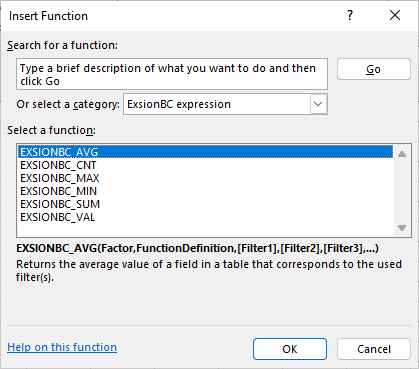
EXSION365_CNT
Returns the number of records of a table which corresponds to the used filter(s).
| Argument | Description |
|---|---|
| Factor | Factor by which to multiply the result. |
| Function definition | Function definition (Range). |
| [Filter …] | Filter on the index field of the function definition: the first filter belongs to the first index field, the second to the second, and so on. There are as many filters as there are index fields in the function definition. |
EXSION365_AVG
Returns the average value of a field in a table that corresponds to the used filter(s).
| Argument | Description |
|---|---|
| Factor | Factor by which to multiply the result. |
| Function definition | Function definition (Range). |
| [Filter …] | Filter on the index field of the function definition: the first filter belongs to the first index field, the second to the second, and so on. There are as many filters as there are index fields in the function definition. |
EXSION365_MAX
Returns the largest value of a field in a table that corresponds to the used filter(s).
| Argument | Description |
|---|---|
| Factor | Factor by which to multiply the result. |
| Function definition | Function definition (Range). |
| [Filter …] | Filter on the index field of the function definition: the first filter belongs to the first index field, the second to the second, and so on. There are as many filters as there are index fields in the function definition. |
EXSION365_MIN
Returns the smallest value of a field in a table that corresponds to the used filter(s).
| Argument | Description |
|---|---|
| Factor | Factor by which to multiply the result. |
| Function definition | Function definition (Range). |
| [Filter …] | Filter on the index field of the function definition: the first filter belongs to the first index field, the second to the second, and so on. There are as many filters as there are index fields in the function definition. |
EXSION365_VAL
Returns the (first) value of a field in a table that corresponds to the used filter(s).
| Argument | Description |
|---|---|
| Factor | Factor by which to multiply the result. |
| Function definition | Function definition (Range). |
| [Filter …] | Filter on the index field of the function definition: the first filter belongs to the first index field, the second to the second, and so on. There are as many filters as there are index fields in the function definition. |
EXSION365_SUM
Returns the summed value of a field in a table that corresponds to the used filter(s).
| Argument | Description |
|---|---|
| Factor | Factor by which to multiply the result. |
| Function definition | Function definition (Range). |
| [Filter …] | Filter on the index field of the function definition: the first filter belongs to the first index field, the second to the second, and so on. There are as many filters as there are index fields in the function definition. |
Expression function example
An example of an expression function is retrieving the total costs of a project, per project number.
For this, a download definition is created on the project entry table in combination with a defined function (See: Function definition)
The download definition is, in addition to fields from the table, also provided with an Expression field (Total costs with field number -1):
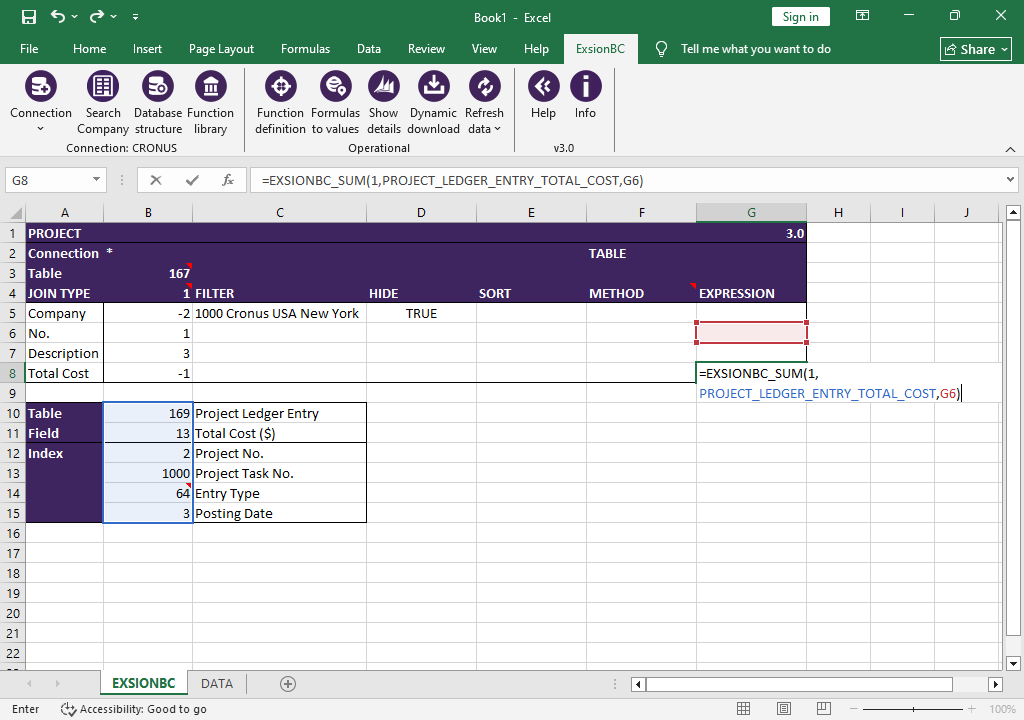
In the Total Cost line, the EXSION365_SUM function can now be used in the Expression column.
The function looks like this:
=EXSION365_SUM(1,PROJECT_LEDGER_ENTRY_TOTAL_COST,G6)
In this case, this function has 3 parameters. Whereby:
Parameter 1: The multiplication factor ( 1 or -1)
Parameter 2: The name of the Function definition.
This can be filled in automatically by selecting the field number column of the Function definition during the creation of the expression function, or by choosing the correct one after pressing the F3 key.
The latter provides an overview of the available functions.
Parameter 3: The cell in the download definition where the project number will appear.
The number of parameters that can be used depends on the number of fields in the Function definition.
After pressing the button “Refresh All” this will be the result on the output sheet:
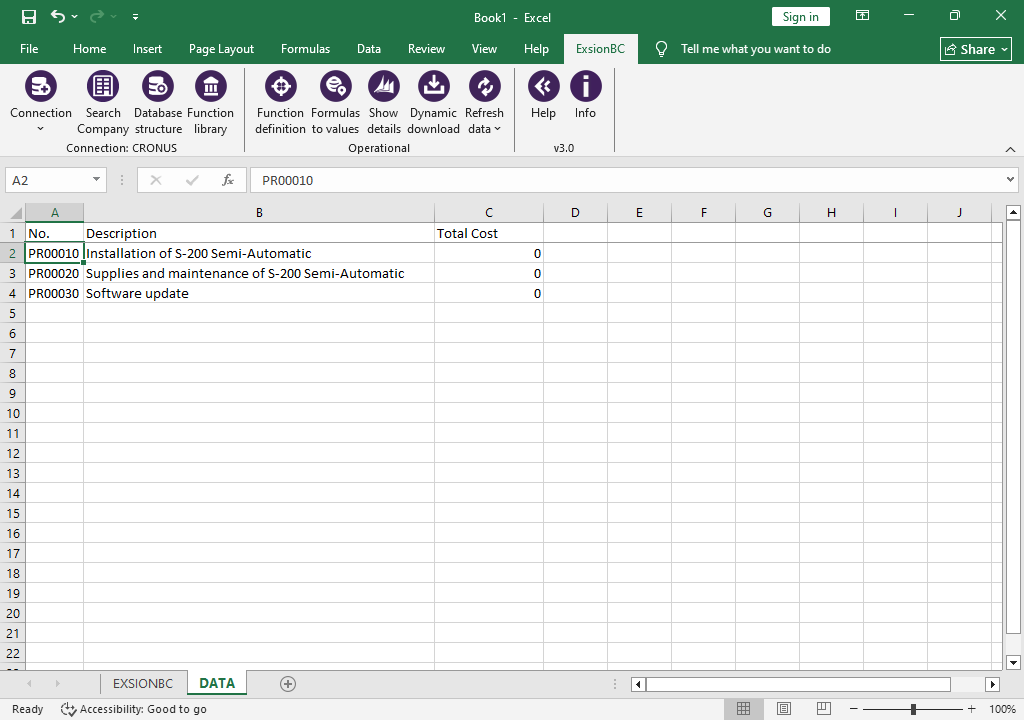
In a download definition, multiple expression fields may be included, each with their own parameters.
The data for these parameters may also come from cells outside the download definition.
Filter usage
When you enter a filter, you can use all the numbers and letters that you can normally use in the field. In addition, you can use some special symbols or mathematical expressions.
Here are the available formats:
| Symbol | Meaning | Sample Expression | Records Displayed |
|---|---|---|---|
| = | Equal to | 377 | Number 377. |
| BLUE | Those with the BLUE code, for example, the BLUE warehouse code. | ||
| 22-1-2015 10:00 | An exact datetime: 22-jan-2015 10:00:00. | ||
| .. | Interval | 1100..2100 | Numbers 1100 through 2100. |
| ..2500 | Up to and including 2500. | ||
| ..31-12-2014 | Dates up to and including 31-dec-2014. | ||
| | | Either/or | 1200|1300 | Those with number 1200 or 1300. |
| & | And | <2000&>1000 | Numbers that are less than 2000 and greater than 1000. |
| <> | Not equal to | <>0 | All numbers except 0. |
| <>A* | Not equal to any texts that start with A. | ||
| > | Greater than | >1200 | Numbers greater than 1200. |
| >= | Greater than or equal to | >=1200 | Numbers greater than or equal to 1200. |
| < | Less than | <1200 | Numbers less than 1200. |
| <= | Less than or equal to | <=1200 | Numbers less than or equal to 1200. |
| * | An indefinite number of unknown characters | *cem* | Texts that contain “cem”. |
| *cem | Texts that end with “cem”. | ||
| cem* | Texts that begin with “cem”. | ||
| ? | One unknown character | ?im | Texts such as Jim or Tim. |
| () | Calculate before rest | 30|(>=10&<=20) | Those with number 30 or with a number from 10 through 20 (the result of the calculation within the parentheses). |
You can also combine the various format expressions:
| Sample Expression | Records Displayed |
|---|---|
| 5999|8100..8490 | Include any records with the number 5999 or a number from the interval 8100 through 8490. |
| ..1299|1400.. | Include records with a number less than or equal to 1299 or a number equal to 1400 or greater (all numbers except 1300 through 1399). |
| >50&<100 | Include records with numbers that are greater than 50 and less than 100 (numbers 51 through 99). |
| *C*&*D* | Texts containing both C and D. |
| *co?* | Texts containing “co” such as cot, cope and incorporated. “co” must be present, followed by at least one character, but there can be an indefinite number of characters before and after these. |
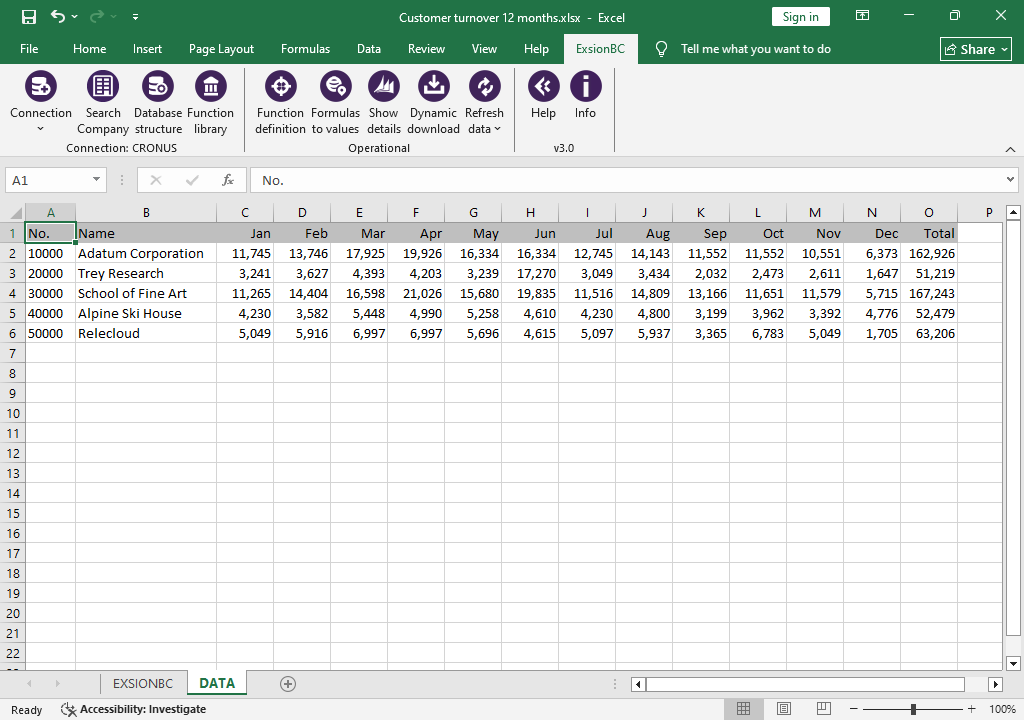
Example customer turnover
Here are 2 ways to create a turnover overview per customer/month as shown here:
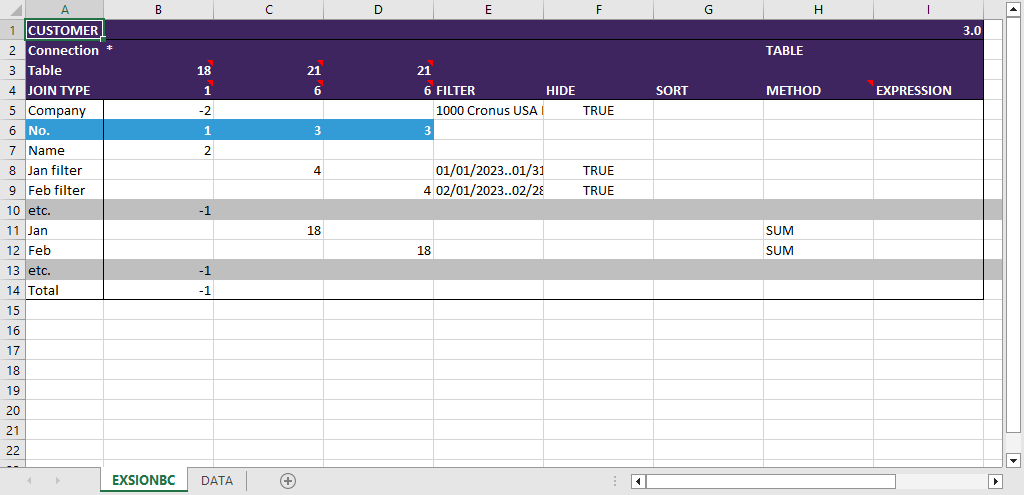
Using a method
This is the most laborious way: the customer ledger entry table (21) is joined again for each month.
For each period:
- a column is specified (see columns 'C' to 'N'), using the JOIN TYPE '6'.
- a row is specified as the date filter (see rows '8' to '19').
- and a result row using the 'SUM' method is specified (see rows '20' to '31').
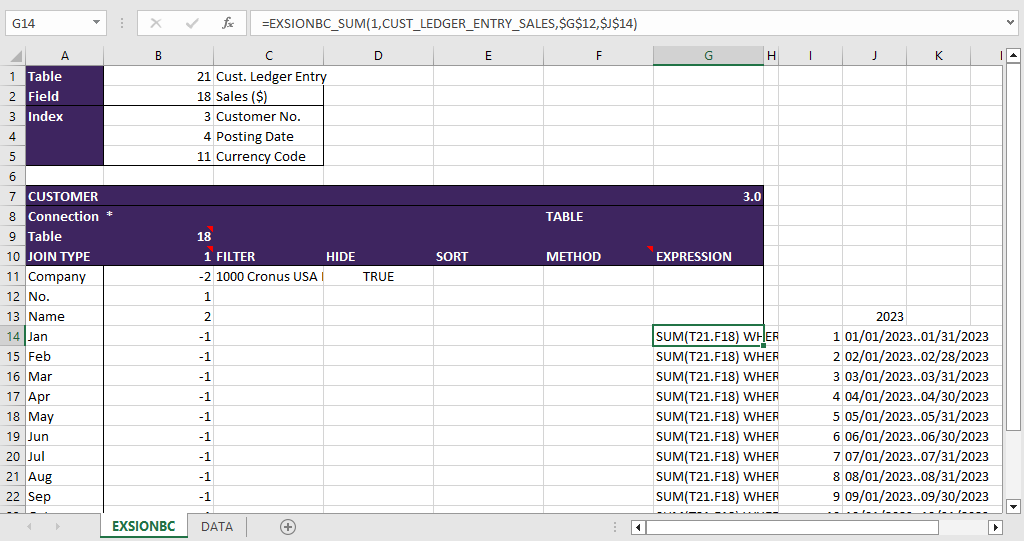
Using a function definition
Use a “Function definition” in the expression column: